Deploy to prod using the UI
From a workspace in Windmill, you can deploy a item and all its dependencies to another workspace. This is a natural way of implementing staging/prod. This feature is available for Cloud plans and Self-Hosted Enterprise Edition only.
For all details on Deployments to prod in Windmill, see Deploy to prod.
The Draft and deploy is another feature that offers a lightweight solution for implementing a staging and production workflow, suitable for various scenarios.
How it works
For users with admin rights on the source workspace, in the Workspace settings, go to the "Deployment UI" tab and pick a workspace for "Workspace to link to".
Items that can be deployed are:
You can filter out on each of these types so that they won't be deployed.
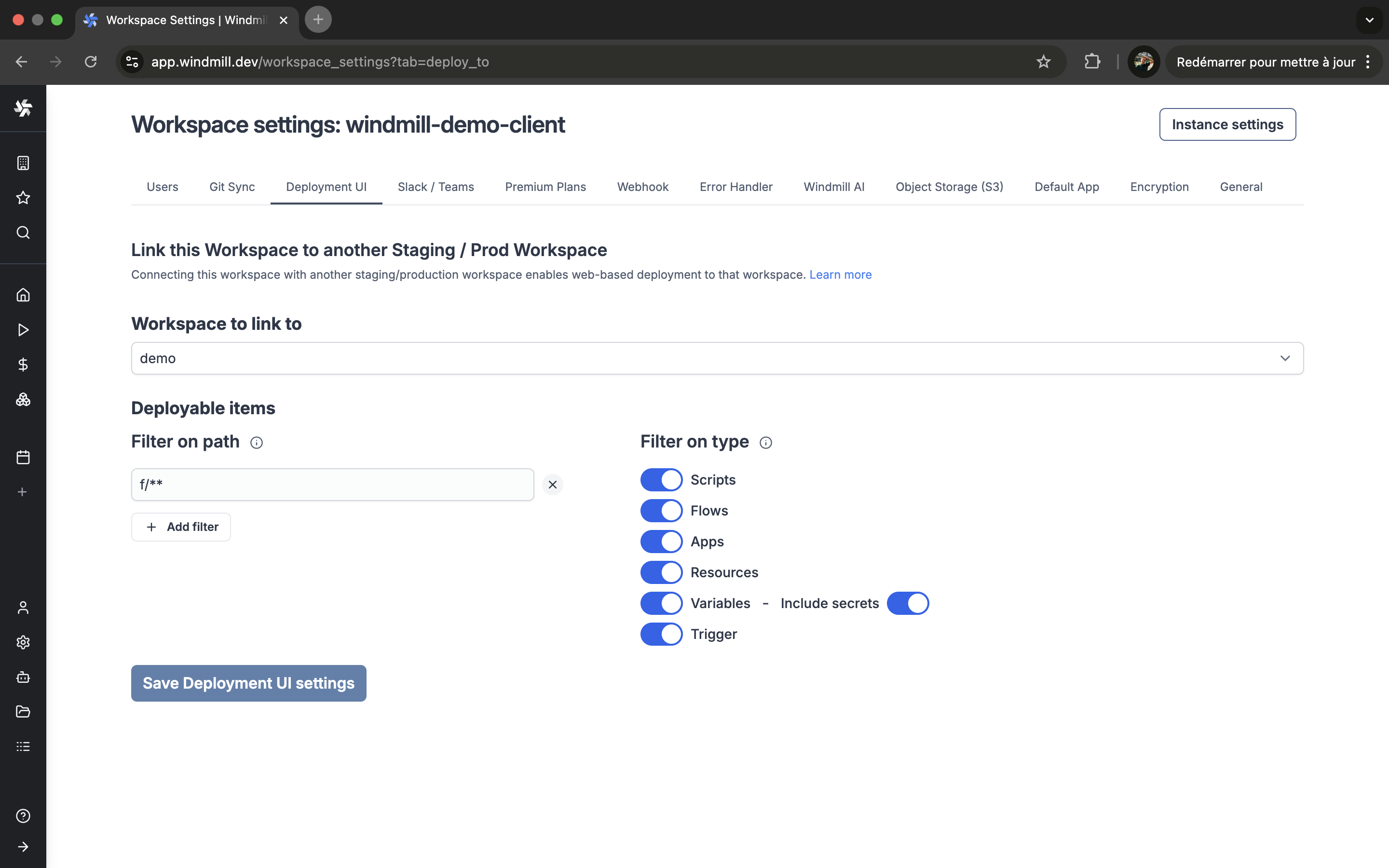
The workspace to link to can for example be:
- a Staging workspace to test scripts and flows
- a Prod workspace where you can deploy scripts and flows when ready.
Then, from the workspace, on the ⋮ menu of each deployed script or flow, pick "Deploy to staging/prod". This can be done also from the Resources and Variables menus or directly from a script or flow Details page.
This can be done by users with both View rights on the deployed-from workspace and edit rights on the deployed-to workspace.
You can deploy one by one flows, scripts (including each script within flow), variables and resources. Or toggle more than one and "Deploy all".
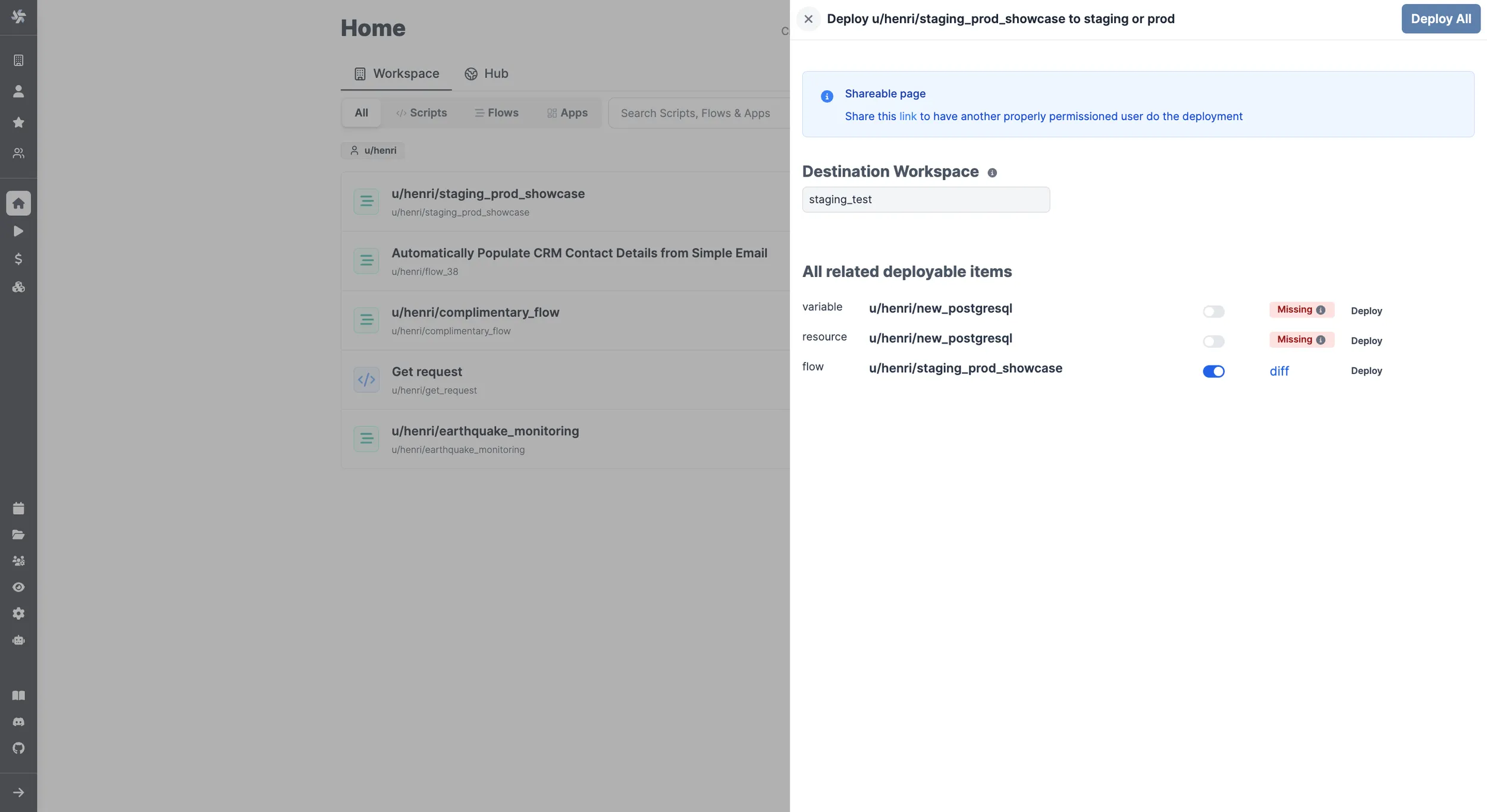
Items are called:
- "Missing" if not yet present in the deployed workspace.
- "New" if the item will be created with the deployment.
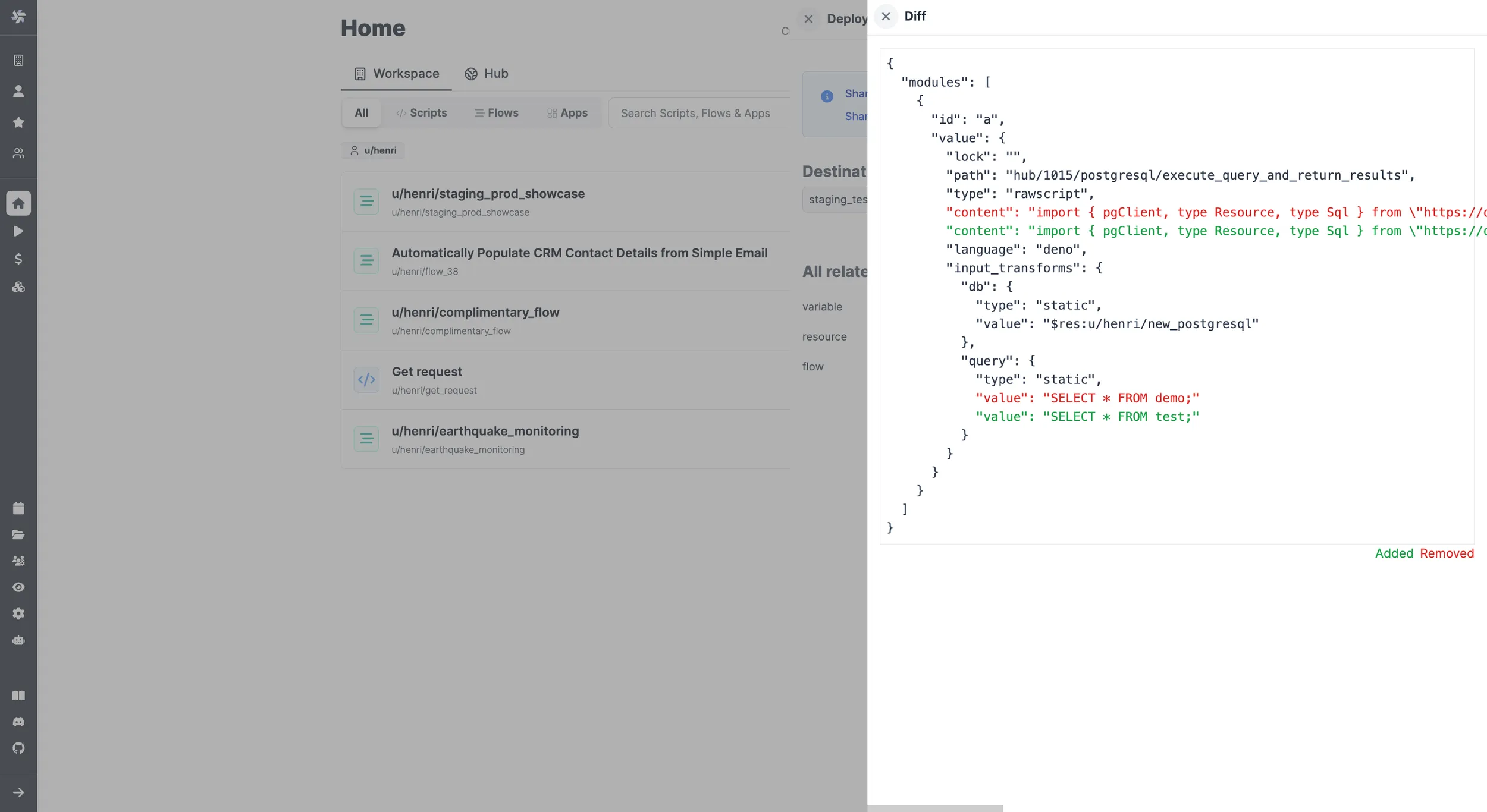
- "diff" if the item was already deployed previously. This opens a difference viewer tab where you can see differences with the previous version.
Shareable page
A static page is created for each potential deployment to Staging/Prod.
This can be useful for non-admin (for example, operators) to share a page to properly-permissioned users to have them review or do the deployment.
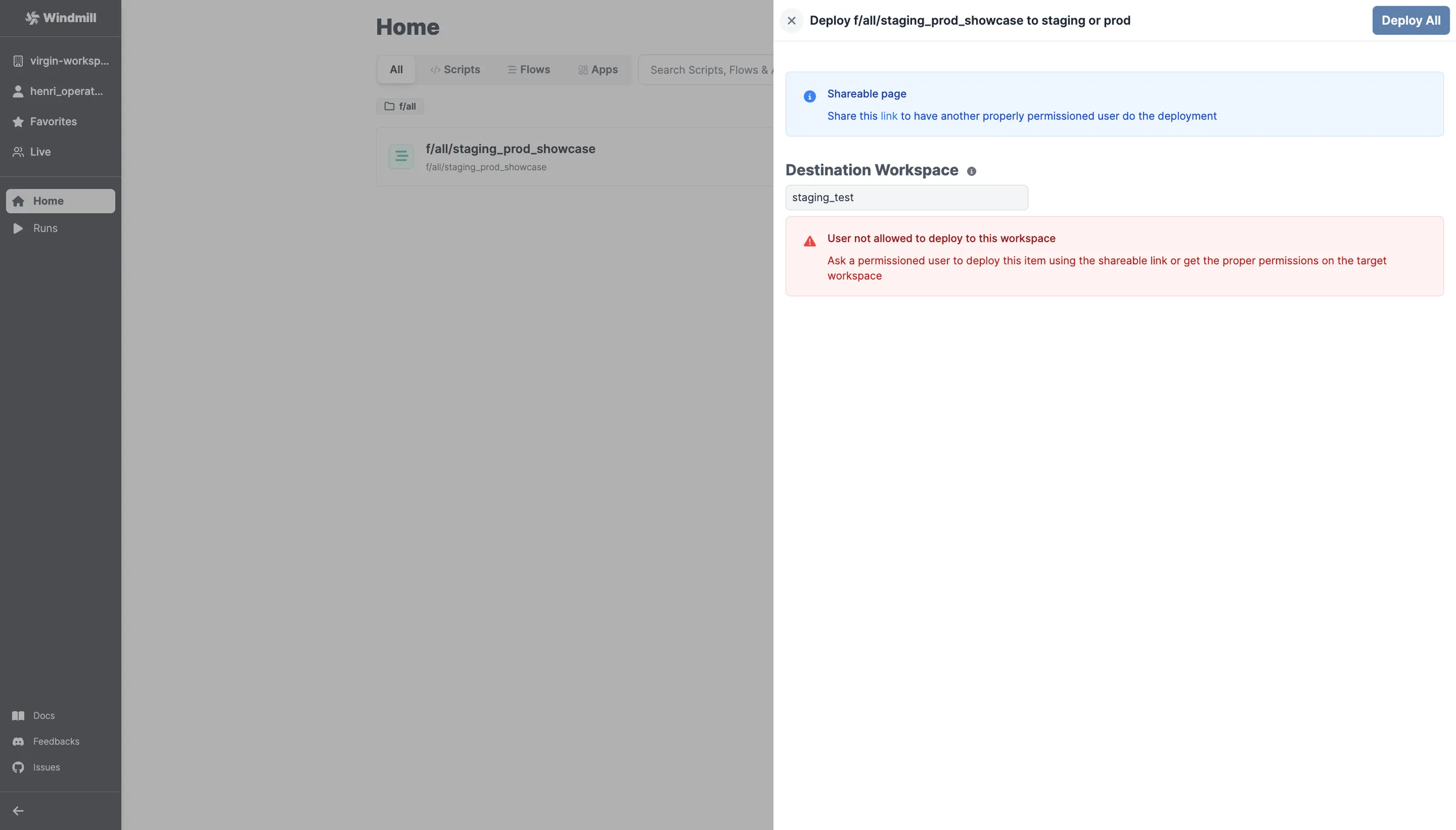
Even users who are not admin can see the "Deploy to staging/prod", from where they can get the link of the shareable page.
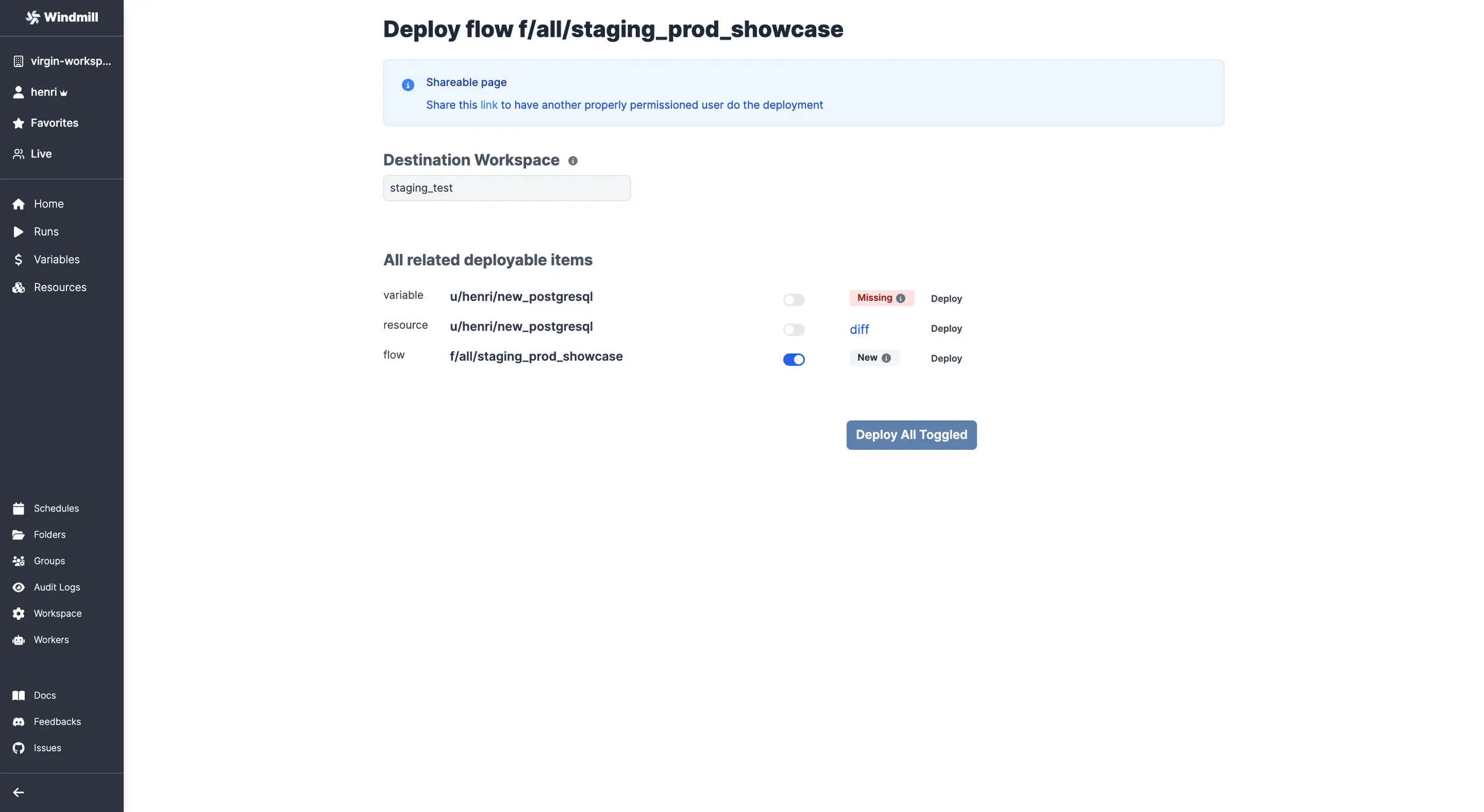
This page then allows users with the right permissions to deploy the given items.
Run on behalf of
When deploying a script, flow, app, or trigger to another workspace, the "run on behalf of" selector lets you choose which user the item will execute as in the target workspace. This is useful for controlling execution permissions across environments.
There are three options:
- Keep the target workspace's existing setting — the item continues running as whatever user was previously configured in the target workspace. This is the default for items that already exist there.
- Use yourself — the item will run as your own user in the target workspace.
- Pick any user from the target workspace — select a specific user (e.g. a dedicated service account) for the item to run as.
Selecting a user other than yourself requires admin rights or membership in the wm_deployers group in the target workspace.
For production workspaces, consider creating dedicated virtual users scoped to specific responsibilities. See Permission compartmentalization with virtual users for the recommended pattern.